Go High Level Round Robin Implementation - Step By Step Guide
Go High Level gives you powerful workflow automation out of the box. Pair it with Robin Router and you get fair, weighted round-robin lead distribution with full audit trails — no custom code required.
What You Need
- A Go High Level account (any plan — Workflows are available on all plans)
- A Robin Router account with a workflow and at least two robin group members
Step 1: Copy Your Webhook URL from Robin Router
Log into Robin Router, open your workflow, and go to the Endpoint tab. Copy the webhook URL.
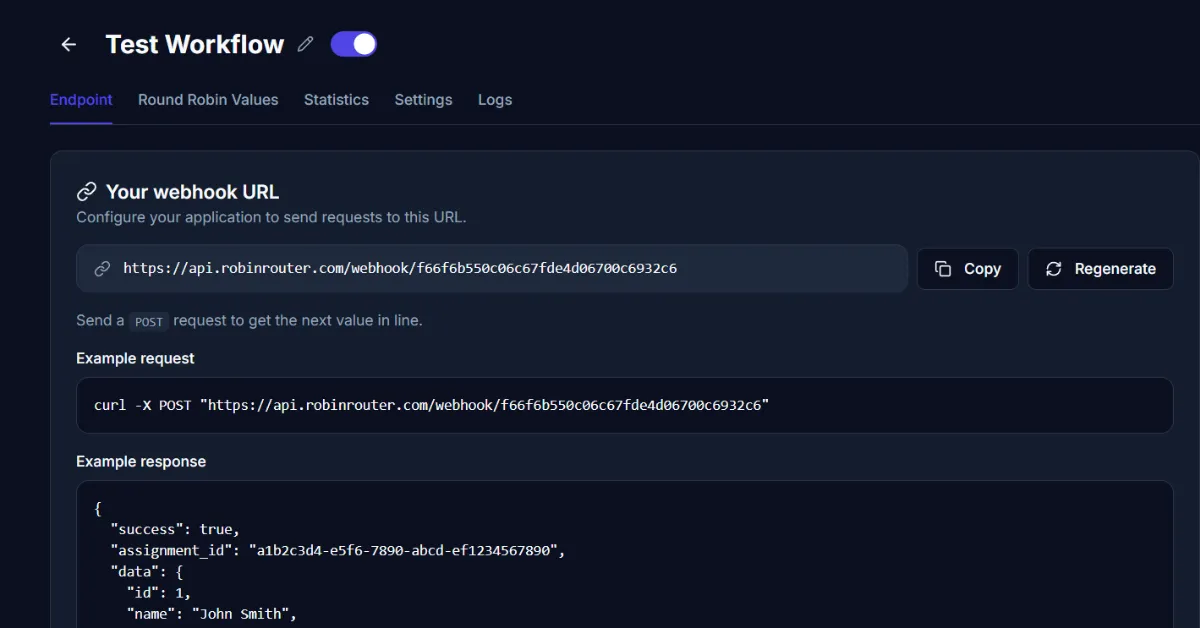
Step 2: Create a Workflow and Add a Custom Webhook Action
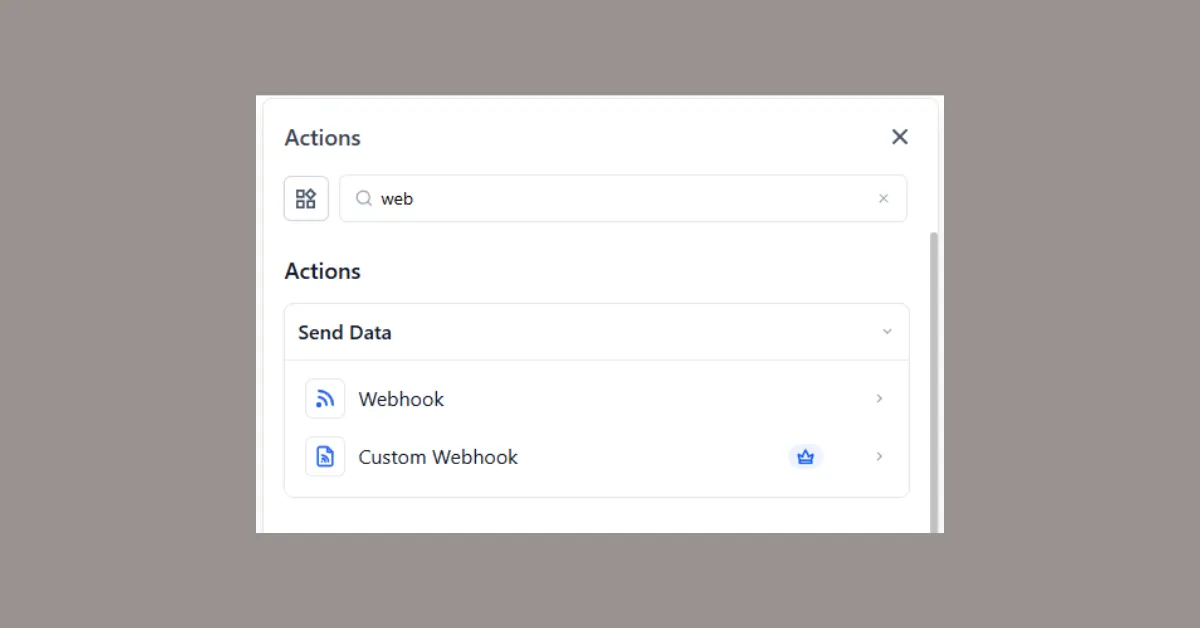
Go High Level's Workflows tool has a Custom Webhook action that lets you call Robin Router directly and receive the response data.
Important: Use Custom Webhook, not the regular Webhook action. The Custom Webhook returns response data from Robin Router (assigned member name, value, custom columns), which you need for downstream actions like assigning the contact owner. The regular Webhook action is fire-and-forget and won't give you the response.
Steps:
- In Go High Level, go to Automation → Workflows and create a new workflow
- Set your trigger (e.g., "Contact Created", "Form Submitted", "Opportunity Status Changed")
- Add an action: select Custom Webhook from the action list
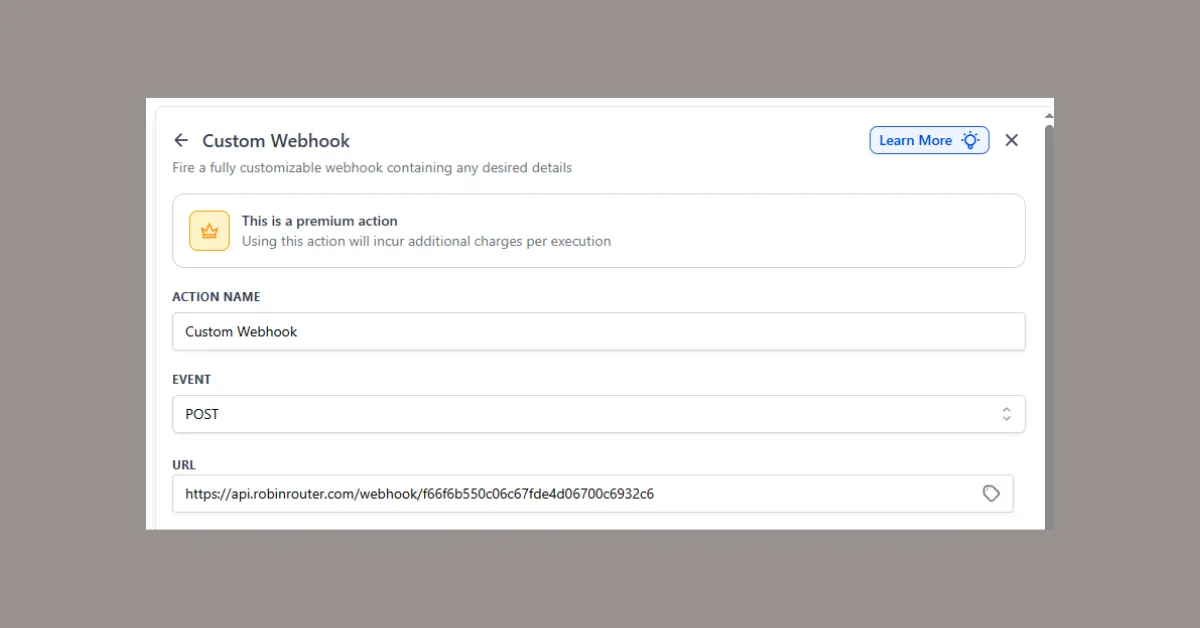
- Configure:
- Method: POST
- URL: Your Robin Router webhook URL (from the Endpoint tab)
- Add a subsequent action to assign the contact to the rep returned in the webhook response
Optional — send lead data with the request body. This is for logging purposes only and does not affect the round-robin assignment:
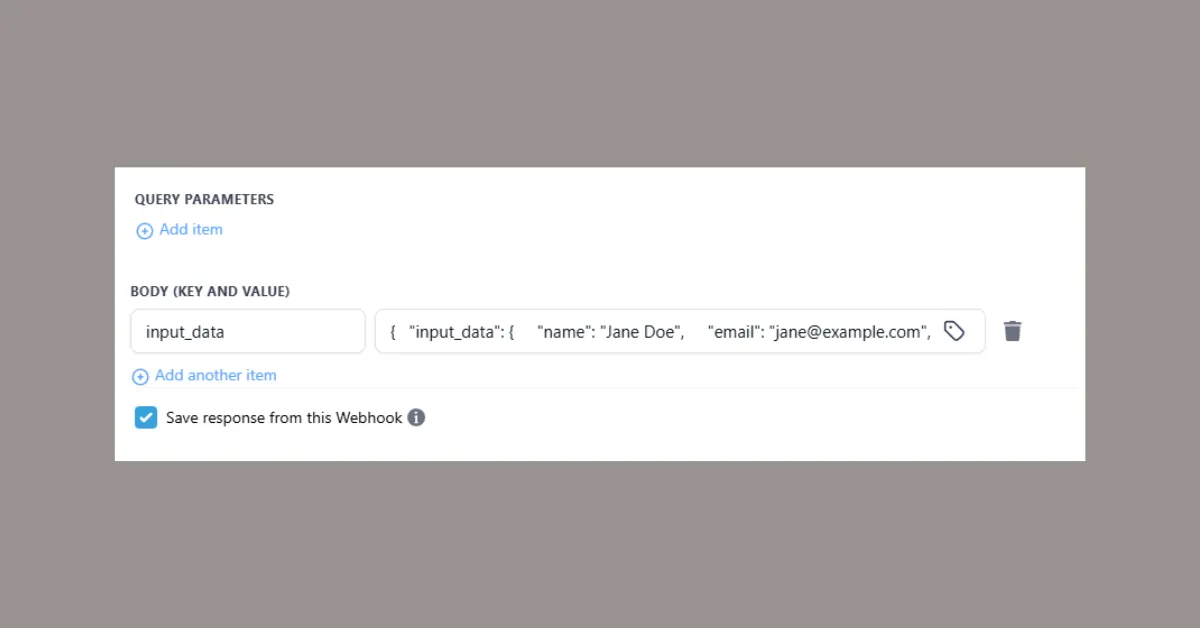
{
  "input_data": {
    "name": "{{contact.name}}",
    "email": "{{contact.email}}",
    "phone": "{{contact.phone}}",
    "source": "gohighlevel_workflow"
  }
}
Step 3: Test the Webhook and Review Response Data
After configuring the webhook action, test it. Go High Level shows the response with a success status and the assigned member's data. Use these fields in downstream workflow actions.
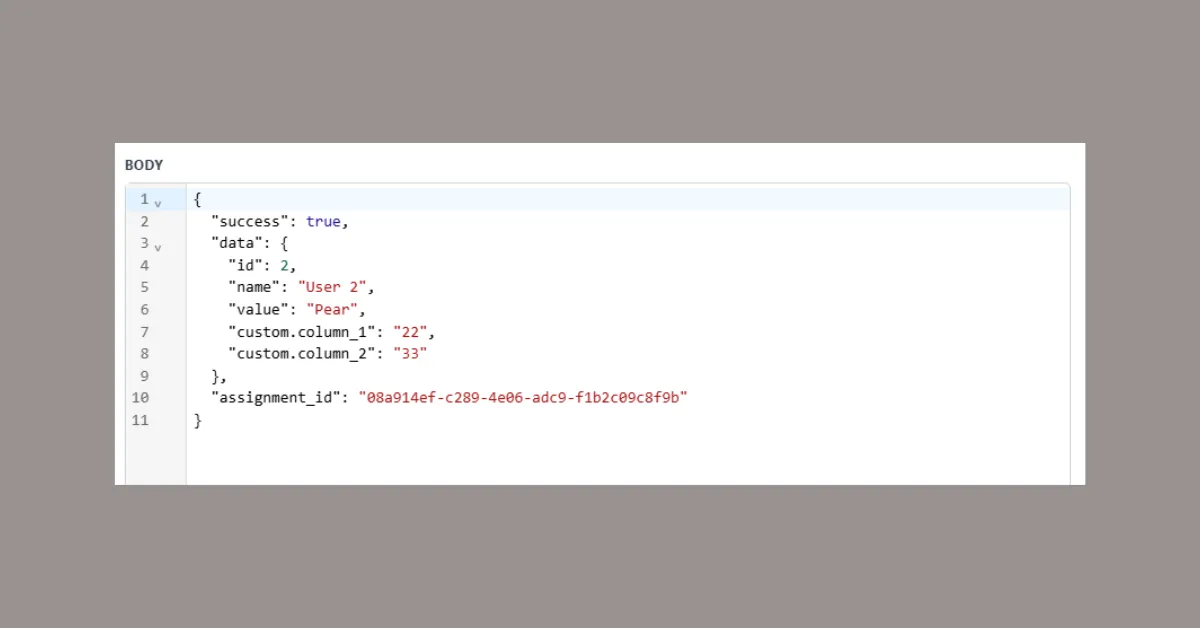
The response includes:
- success —
trueif the assignment worked - data.name — The assigned member's name
- data.value — The assigned member's value (email, GHL user ID, etc.)
- data.custom_column_1, 2, ... — Any custom columns you've configured
- assignment_id — A unique ID for this assignment
Setting Up Robin Router Members for Go High Level
Each member in your Robin Router group needs a value that Go High Level can use to identify the rep. Two options:
- GHL User ID — Find it in Settings → My Staff. Set each member's value to their GHL user ID.
- Email address — Set the member's value to their email.
Verify in Robin Router Logs
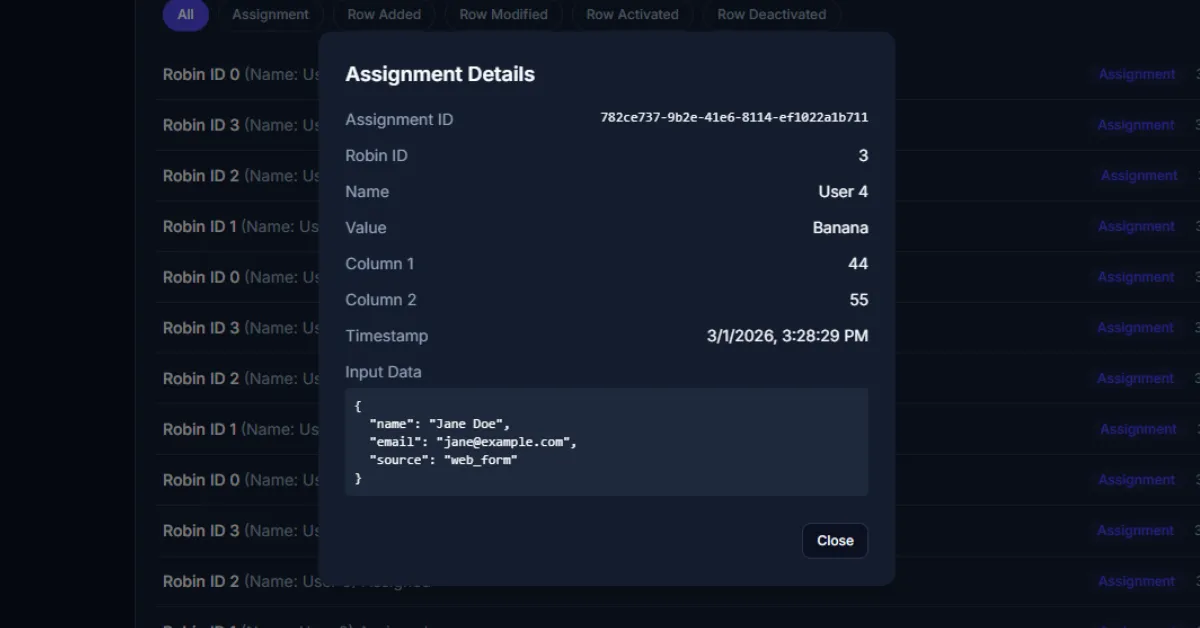
After testing, go to the Logs page in Robin Router to confirm assignments are being recorded. Click any entry to see the full details.
Done
Your Go High Level workflow is connected to Robin Router. Every new lead gets assigned to the next rep in the round-robin automatically. Configure availability toggles and fallback members in the Robin Router dashboard — changes take effect immediately across all active workflows.